原文核对:2026-10-13 · 中文正文 · 英文提示词与演示
场景定位
使用 Codex 为网页应用添加由 WebMCP 驱动的导览,高亮下一步控件、解释操作,并依据用户当前状态调整指引,让用户亲自完成步骤。
- 难度
- 高级
- 时间跨度
- 长时间运行
适合用于
- 帮助新用户完成网页应用首个工作流的团队。
- 需要随登录状态、服务连接或面板展开情况调整的新手引导。
- 希望用户学会控件位置并亲自操作的任务。
起步提示词
英文原文 · 可复制后按实际材料修改
Add a guided tour to [web app/repository] so Codex can show users how to [complete one specific workflow].

Read the app's existing UI, state management, and documentation first. Use WebMCP to let Codex:
- discover tour targets through stable, semantic IDs, labels, and descriptions
- highlight a target with a short explanation and dismiss the highlight
- read the UI state needed to choose the next step
- wait for the user to act, then read the updated state
- read the app's instructions and relevant documentation

The user should complete the workflow themselves. Keep tour tools separate from tools that perform actions, and preserve the app's existing authentication and permission checks.

Start with one complete flow. Reuse the existing components and design system. Test the tour in a browser environment where Codex can call the WebMCP tools, including different starting states, a canceled step, and a target that isn't visible yet.

Summarize what changed, what you verified, and any setup still needed. Do not deploy or publish without my approval.
简介
有些流程在有人指出去哪里、点什么时更容易学习。使用 Codex 构建网页应用导览,指导用户亲自完成操作。
通过暴露应用控件、状态和文档的 WebMCP 工具,Codex 可以根据用户看到的界面决定下一条指引。尚未连接服务的用户,与已经完成设置的用户,需要不同的第一步。
使用方法
- 在 Codex 中打开应用仓库,选择一个需要引导的流程,例如连接服务或添加目录。
- 提供相关文档,说明导览应处理的起始状态。
- 运行本页起始提示词,添加导览目标、UI 状态工具和应用说明访问能力。
- 在 Codex 能调用应用 WebMCP 工具的浏览器环境中测试。请 Codex 指导你,再亲自完成每一步。
首次导览保持范围较小。确认能从设置引导到完成后,再添加更多流程。
示例:在 Runme 中添加 Google Drive 文件夹
在 Runme 中,用户编辑笔记本,并通过文件浏览器添加 Google Drive 文件夹和浏览文件。导览帮助新用户找到这些控件并学习流程。
更多 Runme 背景可阅读“在 OpenAI 使用 Codex 自动化重复工作”。
观看 Codex 如何高亮 Runme 控件并说明用途。下方截图展示另一段专门用于添加 Google Drive 文件夹的任务导览。
Google Drive 导览从一个请求开始:
官方提示词
英文原文 · 可复制后按实际材料修改
Show me how to add a Google Drive folder.连接 Google Drive
Codex 检查 Google Drive 是否已连接。如果没有,就高亮 Connect Google Drive,并请用户选择该控件、完成连接。
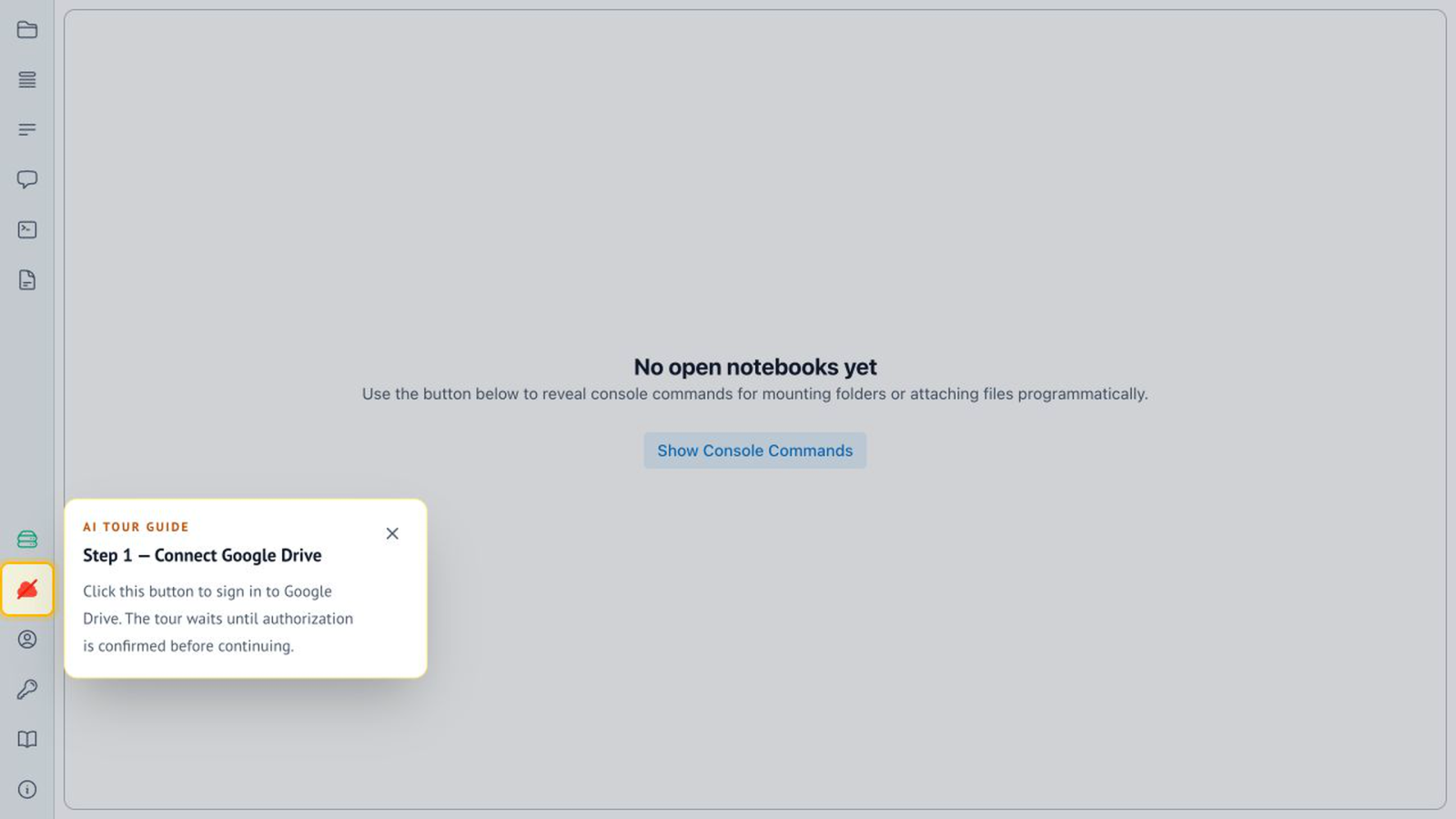
打开文件浏览器
连接完成后,Codex 引导用户打开文件浏览器。下一条指引会根据更新后的应用状态生成。
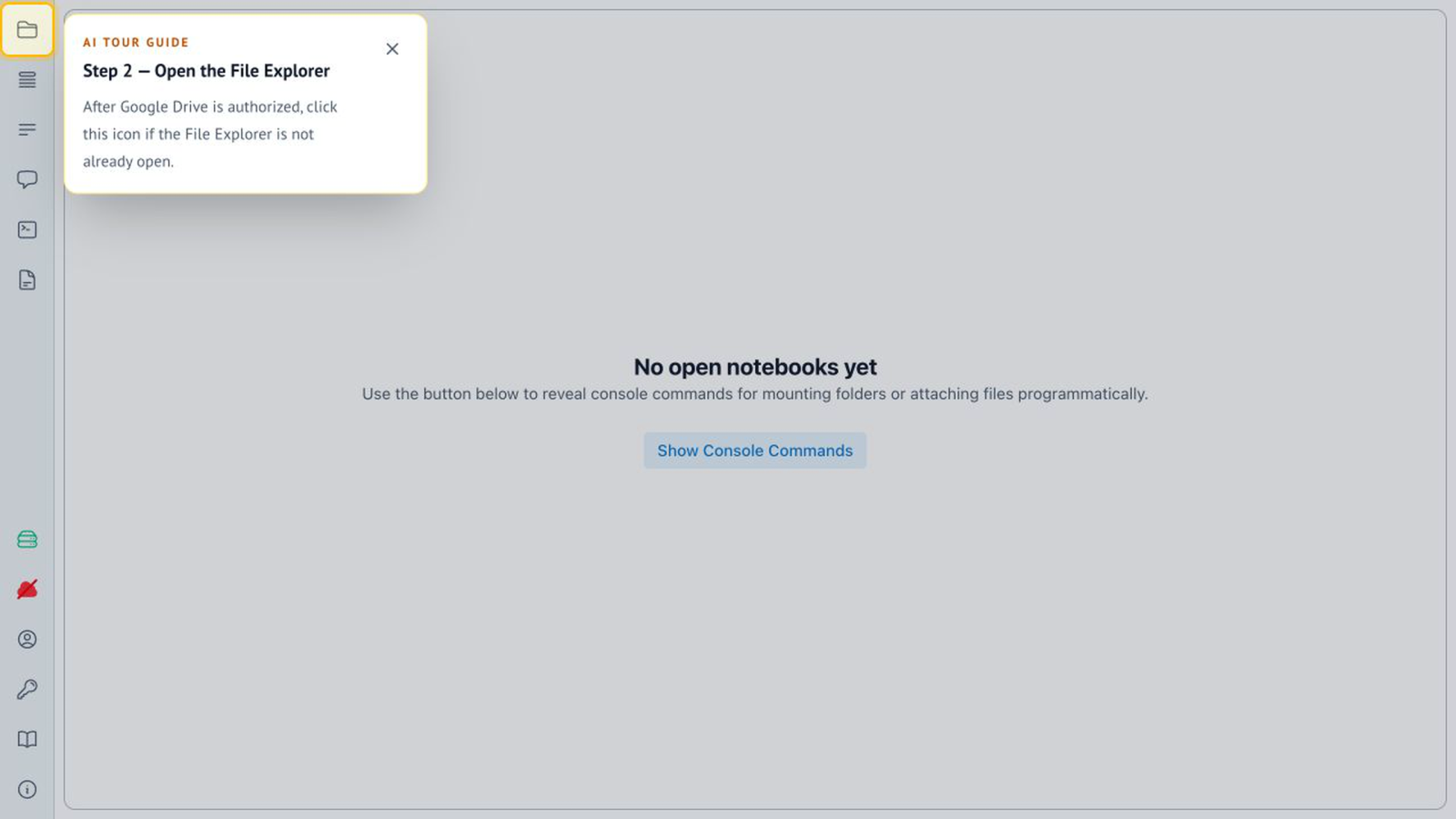
添加文件夹
用户展开工具栏后,Codex 高亮添加 Google Drive 文件夹的控件。用户始终掌控交互,也能学会下次到哪里找到该功能。
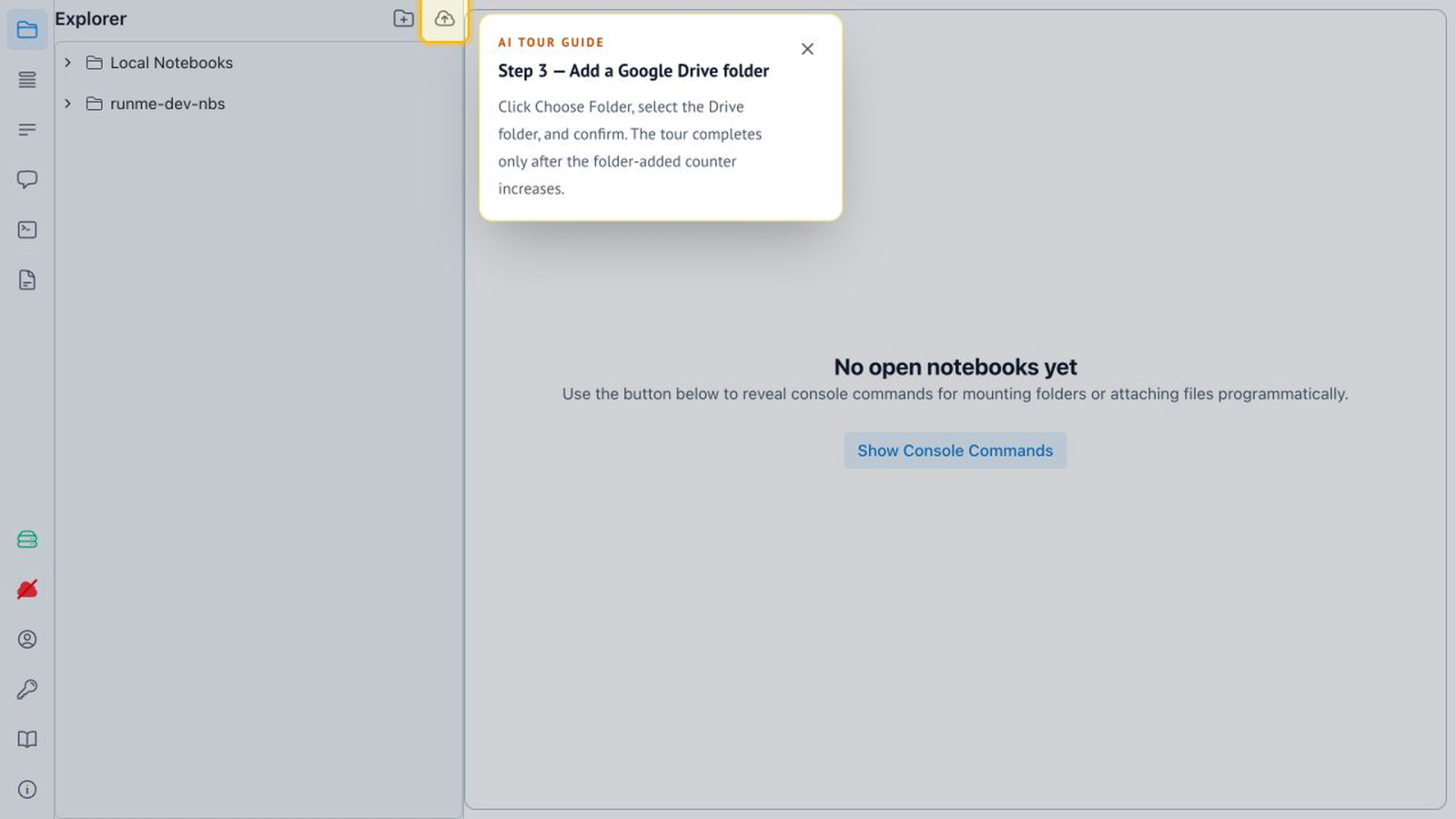
为 Codex 提供导览所需的上下文
Runme 的实现提供三类上下文:导览目标、应用状态和文档。下方工具名来自 Runme;可在自己的应用中实现相同职责。
让控件可被发现
为导览目标提供稳定、语义明确的 data-tour-id,并为每个目标配置标签和描述。Runme 通过三个 WebMCP 工具暴露这些控件:
- listTargets 列出已注册的目标、ID、标签和描述。
- showTourStep({ target, title?, message, placement? }) 高亮目标并显示解释。
- dismiss 移除高亮。
这样 Codex 能识别并解释控件,而不替用户执行控件的操作。
读取状态并等待用户
Runme 将导览相关状态保存在 React 之外,通过控制器暴露。getUiSnapshot 返回当前 UI 状态,包括登录状态;waitForUiChange(...) 让 Codex 等待变化,例如用户选择被高亮的控件。
要求 Codex 在每次交互后重新读取状态。导览是否前进应取决于应用实际发生的变化,而不是 Codex 是否已经展示了一条指令。
将说明随应用一起提供
Runme 将 Markdown 文档打包进应用,并通过 WebMCP 提供:
- readInstructionsForAIAgents 解释 Codex 应如何与应用及工具交互。
- listDocumentation() 列出可用页面和描述。
- getDocumentation({ name }) 返回选定页面的 Markdown 内容。
导览说明和工具可以随应用一起发布,无需另行安装专门的 Codex 导览插件。
审查导览
从不同起始状态尝试同一请求,检查导览能否跳过已完成设置、等待用户操作,并随 UI 变化调整指引。
还要测试用户取消步骤,以及目标控件尚不可见的情况。Codex 应解释缺少什么,或选择有效的下一步;不能仅因高亮了按钮,就声称操作成功。
身份验证、权限检查和用户操作应保留在应用现有流程中。导览帮助用户理解界面,不应绕过这些控制。
适合继续提出的请求
首个流程正常后,可以在同一聊天中继续:
- “测试 Google Drive 已连接、文件浏览器关闭时的导览。”
- “处理用户取消一步后,又请求继续导览的情况。”
- “复用现有目标和状态工具,为[下一个工作流]添加导览。”
展开英文原文对照
Use Codex to add a WebMCP-powered tour to your web app. Highlight the next control, explain what to do, and adapt the guidance to the user's current state while they complete the steps themselves.
Introduction
Some workflows are easier to learn when someone shows you where to go and what to select. Use Codex to build a tour that guides users through your web app while they perform the actions themselves.
With WebMCP tools for your app’s controls, state, and documentation, Codex can choose the next instruction based on what the user sees. A user who hasn’t connected a service needs a different first step from someone who has already completed setup.
How to use
- Open your app’s repository in Codex and choose one workflow to guide, such as connecting a service or adding a folder.
- Provide the relevant documentation and describe the starting states the tour should handle.
- Run the starter prompt on this page to add tour targets, UI-state tools, and access to the app’s instructions.
- Test the flow in a browser environment where Codex can call your app’s WebMCP tools. Ask Codex to guide you, then complete each step yourself.
Keep the first tour narrow. Verify that it can guide a user from setup to completion before adding more workflows.
Example: Add a Google Drive folder in Runme
In Runme, users edit notebooks and use a file explorer to add Google Drive folders and navigate their files. The tour helps a new user find those controls and learn the flow.
To learn more about Runme, you can read Automating repetitive work at OpenAI with Codex.
Watch Codex highlight Runme’s controls and explain their purpose. The screenshots below show a separate, task-focused tour for adding a Google Drive folder.
The Google Drive tour starts with a request:
官方提示词
英文原文 · 可复制后按实际材料修改
Show me how to add a Google Drive folder.Connect Google Drive
Codex checks whether Google Drive is connected. If it isn’t, Codex highlights Connect Google Drive and asks the user to select it and complete the connection.
Open the file explorer
After the connection is complete, Codex guides the user to the file explorer. The next instruction follows the updated app state.
Add the folder
Once the user expands the toolbar, Codex highlights the control for adding a Google Drive folder. The user stays in control of the interaction and learns where to find it next time.
Give Codex the context to guide users
Runme’s implementation provides three kinds of context: tour targets, application state, and documentation. The tool names below come from Runme; adapt the same roles to your app.
Make controls discoverable
Give tour targets stable, semantic data-tour-id values, with a label and description for each. Runme exposes these controls through three WebMCP tools:
- listTargets lists the registered targets, IDs, labels, and descriptions.
- showTourStep({ target, title?, message, placement? }) highlights a target and displays an explanation.
- dismiss removes the highlight.
This gives Codex a way to identify and explain a control without performing its action for the user.
Read state and wait for the user
Runme keeps tour-related state outside React and exposes it through a controller. Its getUiSnapshot tool provides the current UI state, including sign-in status. waitForUiChange(...) lets Codex wait for a change, such as the user selecting the highlighted control.
Ask Codex to read the state again after each interaction. Advancing the tour should depend on what happened in the app, not on whether Codex has already shown an instruction.
Keep instructions with the app
Runme bundles Markdown documentation with the application and makes it available through WebMCP:
- readInstructionsForAIAgents explains how Codex should interact with the app and its tools.
- listDocumentation() lists the available pages and their descriptions.
- getDocumentation({ name }) returns a selected page as Markdown.
The tour instructions and tools can ship with the app, without a separate Codex plugin for the tour.
Review the tour
Try the same request from different starting states. Check that the tour skips completed setup, waits for the user, and updates its guidance when the UI changes.
Also test a canceled step and a control that isn’t visible yet. Codex should explain what is missing or choose a valid next step. It shouldn’t claim that an action succeeded just because it highlighted a button.
Keep authentication, permission checks, and user actions in the existing app flow. The tour should help users understand the interface without bypassing those controls.
Good follow-ups
Once the first flow works, continue in the same chat:
- “Test this tour when Google Drive is already connected and the file explorer is closed.”
- “Handle a user canceling a step, then asking to continue the tour.”
- “Add a tour for [next workflow], reusing the existing targets and state tools.”